
Download PDF
Authenticating to Agent Gateway
- Register your agent with Agent System of Record (ASOR) via the newAgent RegistrationAPI. For more information on registering your agent with ASOR, see Register and Define Your Agent Through an API.
- Client ID: You obtain this from the configuration step in ASOR.
- Client Secret: You obtain this from the configuration step in ASOR.
- Authorization endpoint: https://us.agent.workday.com/auth/authorize/<Tenant_Alias>
- Token endpoint: https://us.agent.workday.com/auth/oauth2/<Tenant_Alias>/token
- Redirect URI: The agent developer provides this in ASOR during the Configuration step for your agent.
- Your agent is active in ASOR.
For the Agent Gateway to route requests to the correct Workday data center, it must know the alias of your tenant. This alias must be provided with all agent API requests, including requests for authentication. Your tenant alias is typically the name of your tenant, and can be found in the URL of your Workday instance: https://wd8.myworkday.com/stark-industries/d/home.htmld.
To direct all relevant API calls to your assigned Agent Gateway endpoint, you must modify your agent's code or configuration.
The following image illustrates a standard OAuth 2.0 Authorization Code Grant authentication flow. These are detailed steps of the flow itself; if your external agent platform supports the OAuth 2.0 standard, it should already support this process.
OAuth 2.0 Authentication
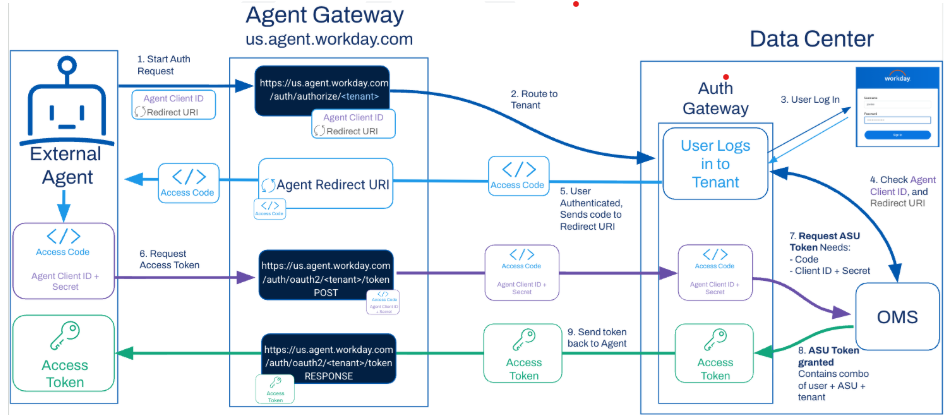
The steps describe the standard OAuth 2.0 flow, which you shouldn’t need to implement manually. A typical OAuth client only requires the configuration values specified in the
Prerequisites
section. For more details on authentication, see Configure External Agents in Workday.- To request an authorization code, send an HTTPS GET request to the authorization endpoint in the Agent Gateway.Send this request in your browser and sign in if requested:https://us.agent.workday.com/auth/authorize/<Tenant Alias>?client_id=<OAuth_Client_ID>&response_type=codeThe Agent Gateway will send this request to the Auth Gateway in the data center where your tenant is located, using the Tenant Alias in the request. The Auth Gateway will then redirect you to a Workday login pop-up, to authenticate. After a successful login and consent for the agent to access Workday data, your agent will receive an authorization code.
- Copy the authorization code value from the response.
- To request an access token, send a POST request to the token endpoint in the Agent Gateway.POST https://us.agent.workday.com/auth/oauth2/<Tenant_Alias>/token grant_type=authorization_code code=<authorization_code> client_id=<OAuth_Client_ID> client_secret=<OAuth_Client_Secret>The Agent Gateway will route the request to the Auth Gateway at the tenant's data center. After validating the specified credentials, Auth Gateway will request the access token from the OMS. Your agent will then receive the access token.